FrameFlow has several discovery features that help automate the onboarding of new network devices. Today we'll introduce you to the different options FrameFlow provides to automatically add network devices to your monitoring configuration. You can even add devices to groups where they will automatically inherit group properties. Let's explore the types of discovery FrameFlow provides in this article.
In FrameFlow's Tools section, you'll find a feature called device discovery. Device discovery is especially useful early into your FrameFlow setup process. This tool can scan for devices using ping requests, SNMP, or Active Directory. All you have to do is enter the range of IPs the tool should scan (for the ping and SNMP options) or the domain controller, username, and password (for the AD option). After that, you can customize the name format and display name type that new devices will display within FrameFlow.
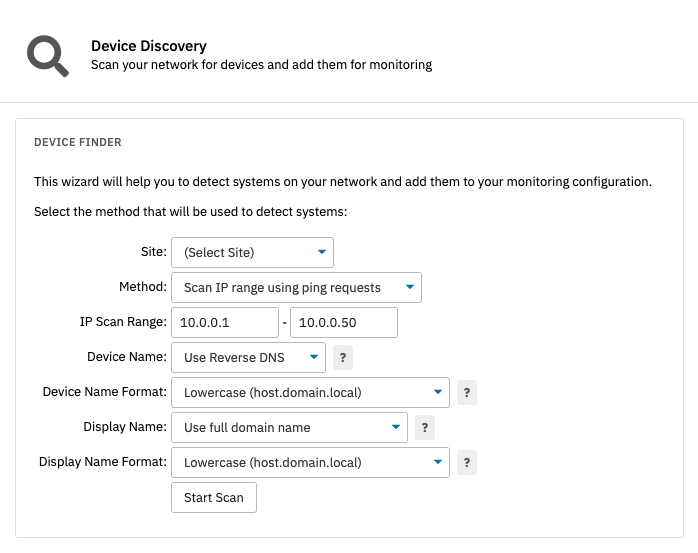 Device Discovery Tool
Device groups are collections of devices in FrameFlow that are grouped under shared settings. In Network Devices, right-click on the tree structure and select "Add Subgroup" to create a new group. Give your group a name, then drag and drop the devices you want to add to it. You can also designate groups for devices detected by discovery event monitors, but we'll elaborate more on that later in the article.
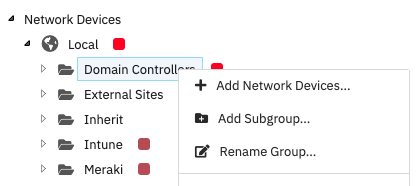 Adding a Subgroup
Right-click on your new device group and select "Properties". This is where you configure the settings that devices with device property inheritance enabled will pick up when added to the group. Property inheritance for groups is off by default, but you can toggle it on in this window. After that, you can change things like device icon, type, widget profile, tags, and much more. You can learn more about group properties and property inheritance with this device property inheritance article.
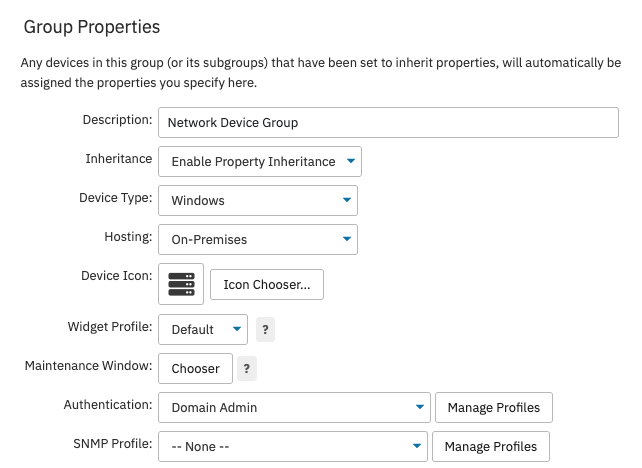 Group Property Settings
To turn on device property inheritance for a network device, go to the Settings section of the desired device. Under "Device Properties", toggle the option from "Do Not Inherit Properties" to "Inherit Properties from Parent Group". After that, when you add the device to a group with inheritance turned on, the device will take on the settings of the group it's in.
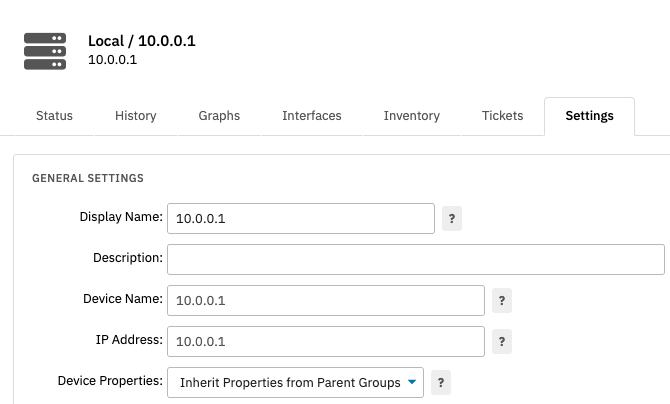 Network Device Property Inheritance Settings
Our Ping Discovery Event Monitor works the same way as device discovery, but it has the ability to run around-the-clock. It will perform regular checks on the IP range you enter in its settings and when it detects a new device, it can automatically add it to a device group you choose. You can choose to pause, move, or remove devices that have been previously discovered by the event monitor, as well as receive an alert if a device that has previously been discovered is no longer present.
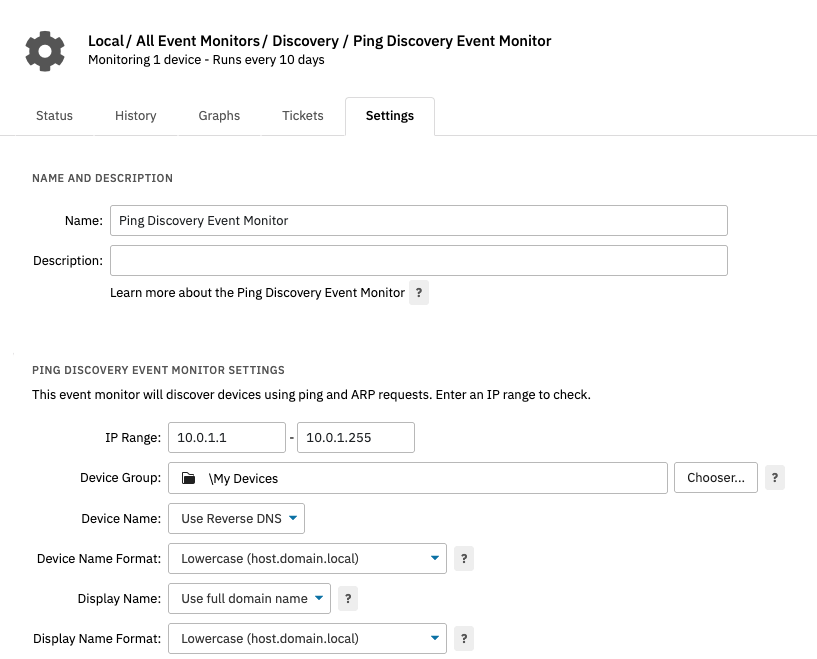 Ping Discovery Event Monitor
The Amazon AWS Discovery Event Monitor works similarly to the Ping Discovery Event Monitor. It auto-discovers Amazon EC2 instances in your AWS account and adds them to your monitoring configuration. Add the access key ID and secret access key alongside the other information fields you see below, then fill in the alert options that the event monitor provides. This event monitor, like all of the proceeding ones, also has the options to pause, move, and remove devices that have previously been detected.
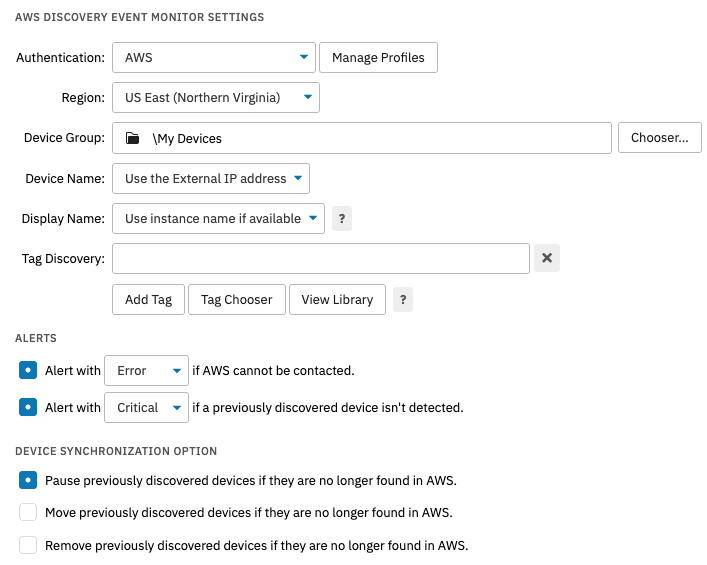 AWS Discovery Options
The AD Discovery Event Monitor searches Active Directory for systems and adds those that are newly discovered to your monitoring configuration. Just add the credentials that allow FrameFlow to detect devices in Active Directory and the event monitor will automatically add any detected devices to the group you specify.
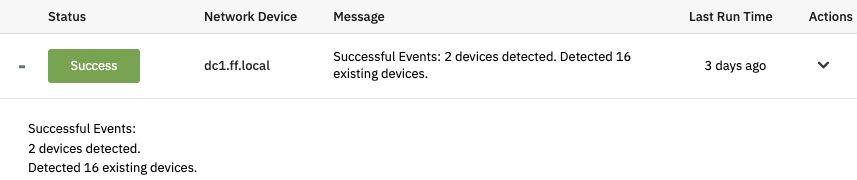 Event Monitor Output for AD Discovery Monitor
FrameFlow's SNMP Discovery Event Monitor uses SNMP to add new devices. Just add an IP range and an SNMP profile, which defines a set of parameters for connecting devices to an SNMP manager. As with all discovery event monitors in FrameFlow, you can choose a device group to add discovered devices to, ensuring that they pick up the settings you've configured for devices in that group.
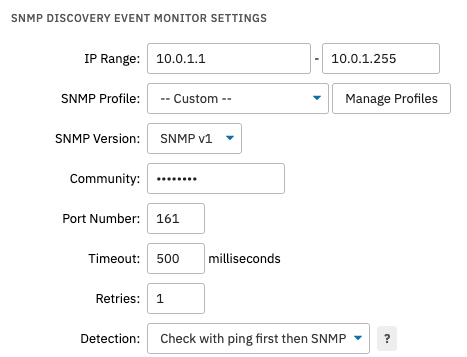 SNMP Discovery Settings
The Intune Discovery Event Monitor detects devices using Microsoft Intune and automatically adds them to a device group that you specify. Just add the necessary Microsoft Intune credentials and select a device group that disocovered devices will be added to.
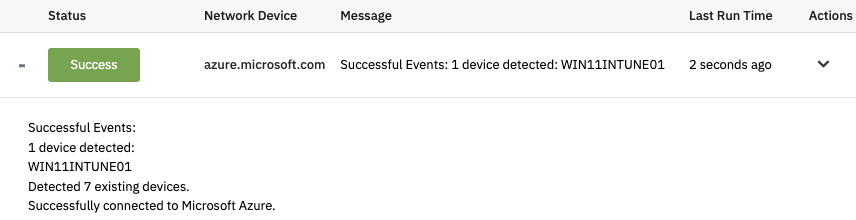 Microsoft Intune Discovery Monitor Output
For the Azure VM Discovery Event Monitor, you'll need to add the credentials to your Azure account or choose an authentication profile with the necessary credentials. After that, just select the device group that detected devices will be added to. You can choose to pause, move, or remove devices that have previously been discovered by the event monitor to prevent clutter.
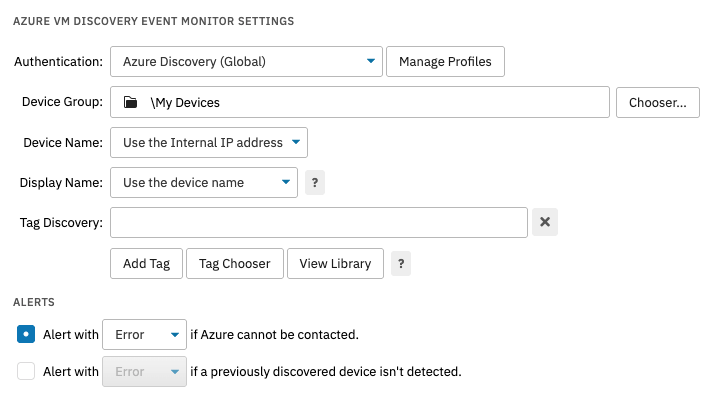 Azure Discovery Settings
FrameFlow's Meraki Discovery Event Monitor scans for devices in your Cisco Meraki account and automatically onboards them to your monitoring configuration. All you need to add are the Meraki API key, the relevant organization, and the device group you want discovered devices to be added to.
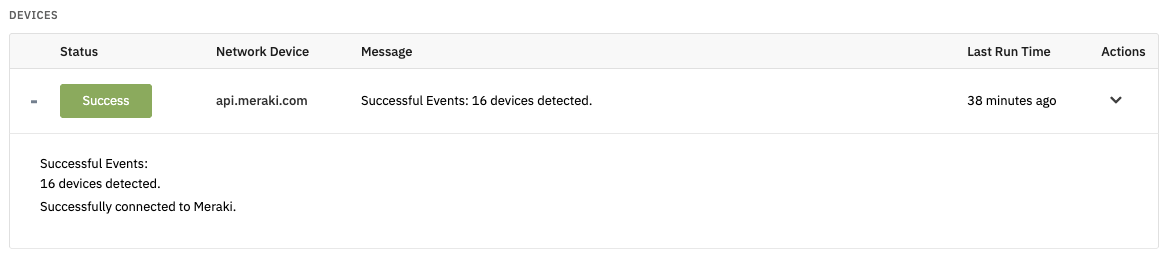 Meraki Discovery Output
The VMware Discovery Event Monitor detects and automatically adds VMware virtual machines to your monitoring configuration. It also has the options to pause, move, or remove previously discovered devices. You can even choose to ignore discovered devices if their IP address is the same as a device that's already been discovered.
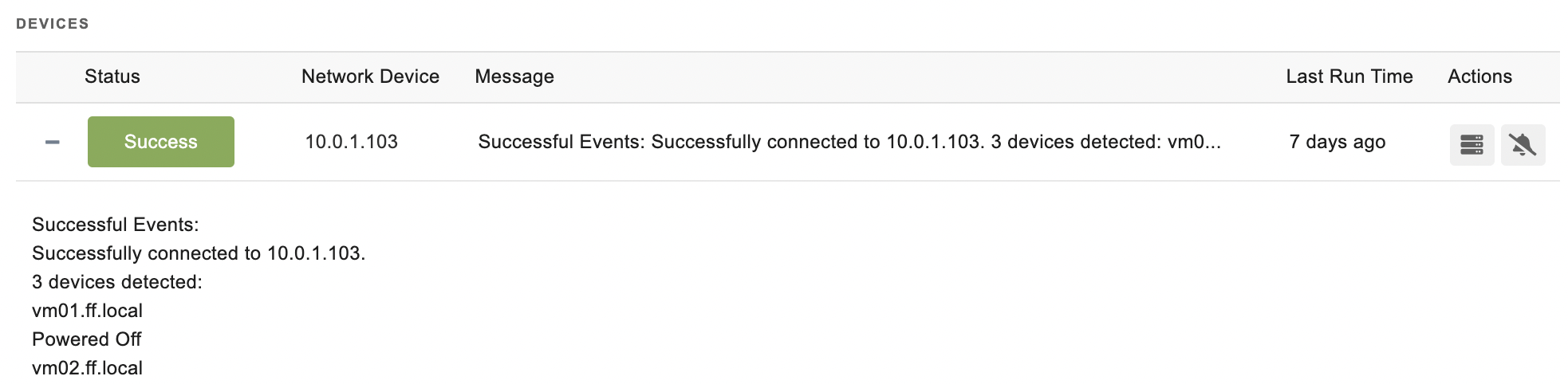 VMware Discovery Output
As you can see, FrameFlow has lots of features that make using our product easier and more automatic. With the tools we've mentioned here, you can automatically onboard new network devices around-the-clock, saving you and your team much-needed time. If that sounds good to you, you can download FrameFlow's free trial today. It's a 30-day limitless free trial where you can test the discovery features mention in this article as well as hundreds of other useful FrameFlow features!